3. Then download and run the installer:
٣. پاشان دامەزرێنەرەکە دابگرە و بیکەرەوە:
Download KSC for Wordداگرتنی KSC بۆ Word
Your browser may warn that “setup.exe isn't commonly downloaded”. This is normal for new software. Keep the file like this:
لەوانەیە وێبگەڕەکەت ئاگادارت بکاتەوە کە «setup.exe isn't commonly downloaded». ئەمە بۆ نەرمەکاڵای نوێ ئاساییە. بەم شێوەیە فایلەکە بهێڵەرەوە:
- In the Downloads panel, move the mouse over the setup.exe warning and click the ⋯ (three dots) button, then click Keep.
لە پانێڵی Downloads، ماوسەکە ببە سەر ئاگادارییەکەی setup.exe و کلیک لە دوگمەی ⋯ (سێ خاڵ) بکە، پاشان کلیک لە Keep بکە.
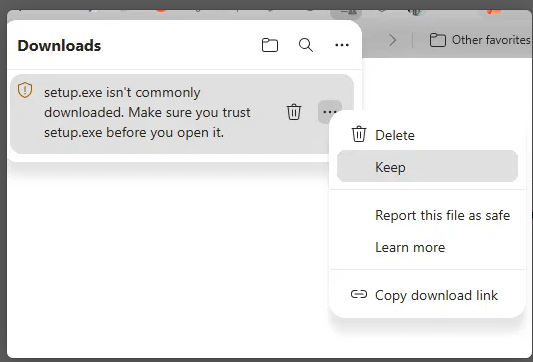
Click ⋯ next to setup.exe, then choose Keep. کلیک لە ⋯ بکە لە تەنیشت setup.exe، پاشان Keep هەڵبژێرە. - A box opens: “Make sure you trust setup.exe before you open it”. Click the small arrow (˅) next to Delete, then click Keep anyway.
پەنجەرەیەک دەکرێتەوە: «Make sure you trust setup.exe before you open it». کلیک لە تیرە بچووکەکە (˅) لە تەنیشت Delete بکە، پاشان کلیک لە Keep anyway بکە.
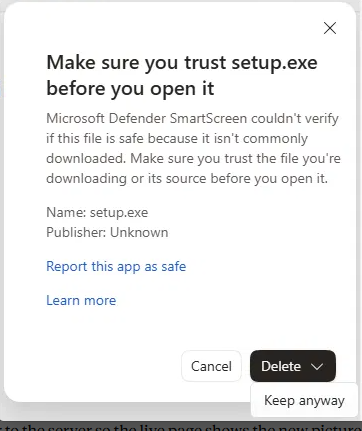
Open the drop-down next to Delete and choose Keep anyway. لیستەکەی تەنیشت Delete بکەرەوە و Keep anyway هەڵبژێرە. - Click Open file under setup.exe in the Downloads panel (or double-click it in your Downloads folder). کلیک لە Open file بکە لە ژێر setup.exe لە پانێڵی Downloads (یان لە بوخچەی Downloads دوو جار کلیکی لەسەر بکە).
- If Windows shows “Windows protected your PC”, click More info → Run anyway. ئەگەر Windows نووسی «Windows protected your PC»، کلیک لە More info بکە، پاشان Run anyway.
- If it says “Publisher cannot be verified”, click Install. ئەگەر نووسی «Publisher cannot be verified»، کلیک لە Install بکە.